Share your organisations pictures on ClubPeople
Did you know, that you easily can share pictures with other members of your organisation
Pictures taken during matches, practices or other events can all be available on ClubPeople
It's free, there’s no space limitation - and it's easy!
1. Add Album
Start by adding your album.
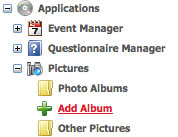
This is done using the menu on the left, and by clicking "Applications", "Pictures" and then "Add Album":
2. Create album and upload your pictures to the album
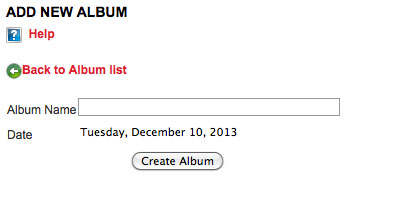
Compose a title and click "Add Album" (E.g. "organisation Trip 2009").
You are now ready to transfer pictures to the folder. Click "Select Pictures" here:
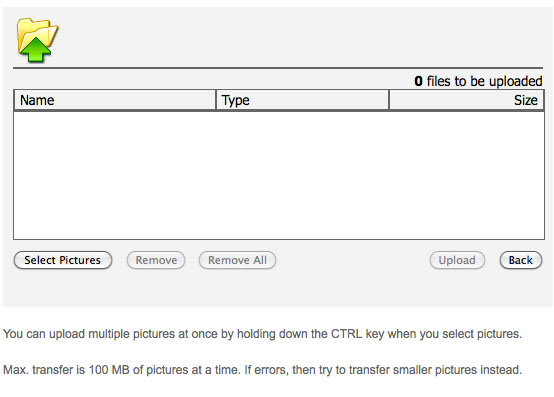
When the pictures are selected, transfer them by clicking on the button "Upload".
The pictures have now been saved in the album. You can add more pictures to the album now, or later.
You can now share the album with your organisation, and other organisation members can enjoy the pictures too.
3. Share the album with your organisation
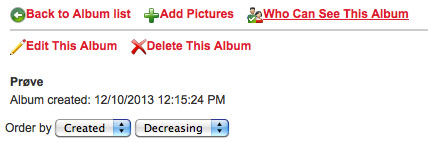
While you are viewing the album, click on "Who Can See This Album":
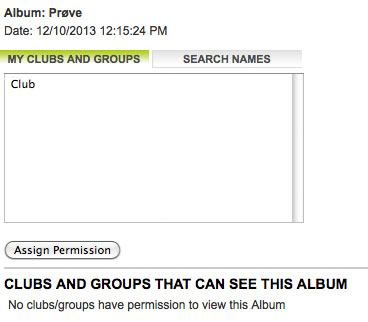
You will now have the option to select your organisation and click "Assign Permission":
4. Find the album on your organisations public pages
You can now find the album on your organisations public pages.
Go to the top of the page, and find the search field. Enter the name of your organisation.

Find your organisation, and choose "Pictures".

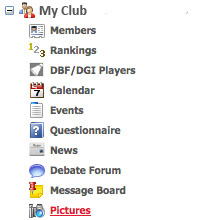
The members of your organisation can also find your picture album using the menu on the left, under the organisation: